ChatGPT
ChatGPT is the one client that does not use Bluente’s hosted MCP server. There are two ways to translate documents with Bluente from inside ChatGPT:
| The plugin | The local MCP server | |
|---|---|---|
| How you drive it | ChatGPT’s own UI | Chat, by asking |
| Install | None | Node.js ≥ 20, configured in ChatGPT settings |
| Sign-in | Bluente account | Bluente API key |
| ChatGPT plan | — | Work mode only |
| Local files | Attached to the conversation | Read straight off your disk by path |
New to Bluente MCP? The overview covers what the tools do, what the settings mean, and how billing works.
Option 1: The plugin
Coming soon. The UI-driven ChatGPT plugin is not documented yet — this section is a placeholder. Until it lands, use the local MCP server below.
Option 2: The local (stdio) MCP server
ChatGPT launches Bluente’s open-source stdio MCP server on your own machine via npx, and talks to it over standard input and output. It is the same server documented at github.com/bluente/bluente-translate-mcp-server (MIT license), and this page documents v0.4.0 and later.
Requirements: Node.js >= 20 (check with node --version; install from nodejs.org) and a Bluente API key.
Getting an API key: open your Bluente dashboard and copy a key from the API keys tab (see API Key). Treat the key like a password — it authorizes translations billed to your account, so keep it out of version control and shared documents.
1. Switch to Work mode
MCP servers are only available in ChatGPT’s Work mode. Use the Chat / Work toggle at the top of the window and make sure Work is selected — in Chat mode there is no Plugins page and no MCP support.
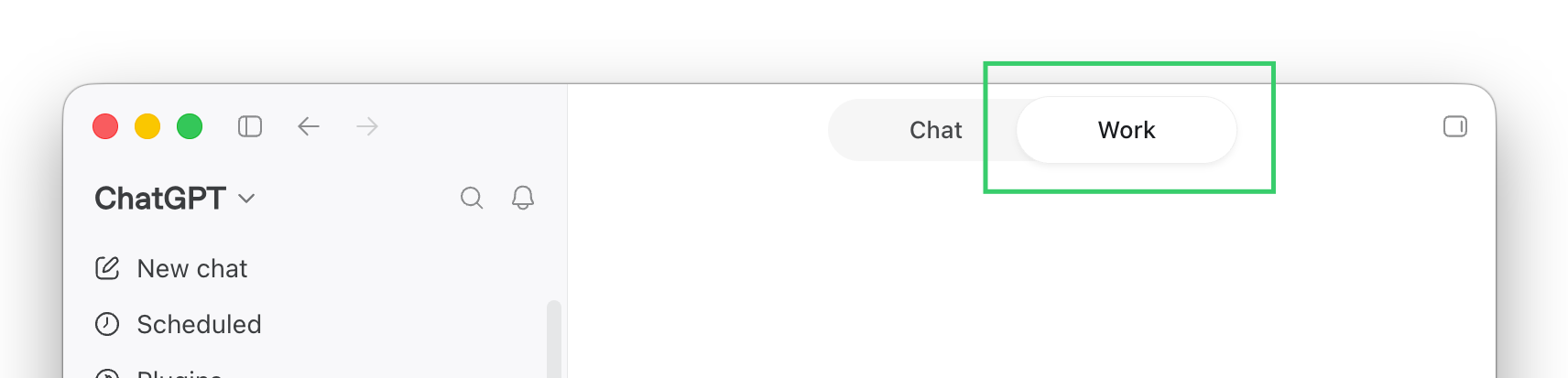
The Chat / Work toggle at the top of ChatGPT. MCP servers only exist under Work.
2. Add an MCP server
Go to Settings → Plugins. The page has tabs — Plugins / Apps / MCPs / Skills / Marketplace. Open the Add dropdown at the top right and choose Add MCP server.
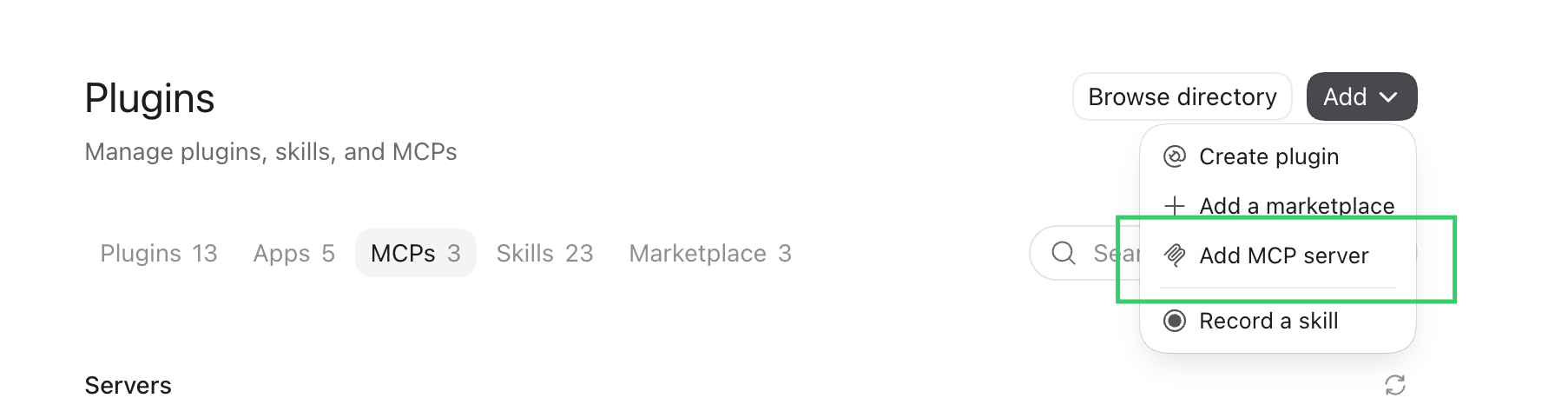
Settings → Plugins → Add → Add MCP server.
3. Fill in the configuration
| Field | Value |
|---|---|
| Name | BluTranslate |
| Type | STDIO |
| Command to launch | /opt/homebrew/bin/npx |
| Arguments — row 1 | -y |
| Arguments — row 2 | @bluente/translate-mcp-server |
| Environment variables | Key BLUENTE_API_KEY, value = your API key |
| Env passthrough | (empty) |
| Working directory | (empty) |
/opt/homebrew/bin/npx is an example, not a universal answer. It is the Homebrew path on Apple-Silicon macOS. Run which npx in a terminal and use whatever absolute path it prints — commonly /opt/homebrew/bin/npx on Apple Silicon, /usr/local/bin/npx on Intel macOS or Linux, or an nvm path like ~/.nvm/versions/node/<version>/bin/npx. An absolute path is required: the plugin host does not resolve npx from a shell PATH.
The two arguments go in as two separate argument rows — -y in one, @bluente/translate-mcp-server in the next — not as a single string.
4. Verify it works
In ChatGPT Work, type exactly:
@BluTranslate what languages does Bluente translation support?A language list back means the key and the connection both work. The first run takes a few extra seconds while npx downloads the package.
Local server reference
Everything below applies to the stdio server wherever it runs, not just under ChatGPT.
Where it differs from the hosted server
Both servers expose the same six bluente_* tools, so a prompt written against one works against the other. Three things differ:
| Local (stdio) | Hosted | |
|---|---|---|
| Reading a local file | file_path | Not possible — the Worker has no filesystem |
| Getting the result out | output_path writes it to disk; include_file_content returns base64 | A download_url valid 15 minutes; include_file_content is not in the schema at all |
| Extra tool | — | bluente_create_upload_url, a seventh tool for pushing a chat attachment out of the client’s sandbox |
- File sources, in order of preference:
file_path(a file on the machine running the server),file_to_translate(an attachment the host hands over — this is how ChatGPT passes a file you dropped into the conversation),file_url(a publicly accessible link), orfile_content_base64(last resort, refused over 2MB decoded).task_idskips the upload entirely for a file that is already uploaded. bluente_download_file:output_pathsets where the file is written; without it the file lands in the current working directory under the name the API returns, falling back to<id>.<to_type>.include_file_content=truealso returns the bytes as base64, which is refused over 2MB. When the workflow tool downloads several formats,output_pathnames the first and the rest are saved beside it.- The local server sets no file-size limit of its own — the ceiling is whatever the Bluente API accepts. (The hosted server caps uploads at 50MB.)
Settings in their raw form
The settings in the overview are the ones on bluente_translate_document_workflow. The raw bluente_translate_file tool takes the same choices in their older numeric form — scanned 0–3 instead of mode, and bilingual as line/paragraph/none instead of on/off. Pass off there and it is rejected.
bilingualon the workflow tool has no default: a confirmed call that omits it is rejected, so you will always be asked. It acceptson,off, andnone(a legacy spelling ofoff) — and nothing else. When bilingual ison, setbilingual_layout:left-rightortop-down. The numericvertical_bilingualflag (0left-right,1top-down) is a deprecated alias;bilingual_layoutwins when both are given.- Glossary — the workflow tool always translates with the glossary enabled, and its
glossaryandcustom_glossaryparameters are deprecated and ignored. On the rawbluente_translate_filetool both flags are yours to set (each defaults to0), and the backend applies the glossary only when both are1. to_type:pdf,word, orpptx.bluente_download_filedefaults toword.bluente_translate_document_workflowalso accepts an array (e.g.["word", "pdf"]) — extra formats are download-time conversions of the same finished translation and cost no extra credits.entryonbluente_get_translation_status:get_status(translation progress, the default) orget_page_count(the uploaded file’s page count). The workflow tool’sstatus_entryaccepts the same values but is not used — it pollsget_page_countwhile the upload is processing andget_statusduring translation.engineis pinned: the server always sendsengine=3(LLM) and ignores whatever you pass. The Translation API also offersengine=4(LLM Pro), but it is not reachable through MCP — call the API directly if you need it.bluente_translate_file:fromandtoare required whenaction="start"and optional whenaction="cancel". This tool has no confirmation gate: it starts translation immediately.
Troubleshooting the API key
The server reads BLUENTE_API_KEY from its environment — you never pass it as a tool argument or store it in a file. If the server reports Missing BLUENTE_API_KEY, the key is not reaching the server process: check the environment variable in ChatGPT’s form for typos and restart the server. When testing from a terminal, prefix the server command itself (BLUENTE_API_KEY=your_api_key_here npx -y @bluente/translate-mcp-server); in a shell pipeline the assignment must sit directly before npx — placed at the start of the line it applies only to the first command in the pipe.
Environment variables
| Variable | Default | Purpose |
|---|---|---|
BLUENTE_API_KEY | (required) | Your Bluente API key |
BLUENTE_API_BASE_URL | https://api.bluente.com/api/20250924 | API base URL |
BLUENTE_API_TIMEOUT_MS | 90000 | HTTP timeout in milliseconds |
Tool responses
Every tool returns a unified envelope. Success:
{
  "ok": true,
  "tool": "bluente_upload_file",
  "data": {
    "code": 0,
    "message": "success",
    "data": { "id": "task_xxx" }
  }
}
Error — the same envelope with ok: false, in a result flagged isError:
{
  "ok": false,
  "tool": "bluente_translate_file",
  "error": {
    "name": "BluenteApiError",
    "message": "Bluente API request failed.",
    "details": { "status": 401 }
  }
}
The unconfirmed workflow call adds one thing to this: its confirmation card is emitted as a plain-text content item before the JSON envelope (and repeated inside it as data.render_to_user), so the card reaches the user verbatim in clients that only surface plain text.
Operational notes
- A confirmed workflow call returns as soon as translation starts. Poll
bluente_get_translation_statusuntildata.statusisREADY, then callbluente_download_fileonce per format. auto_download=trueinstead blocks until the translation finishes and saves the file(s) to disk. It defaults tofalseand is only safe for small documents — translation often takes minutes and your MCP client may time the request out first.max_poll_attempts(default120, one poll everypoll_interval_ms, default3000) is a single budget shared across the upload and translation phases.- Timeout is configurable via
BLUENTE_API_TIMEOUT_MS. - For production, use separate API keys per environment.
Data handling & privacy
- Documents you translate are uploaded to Bluente’s API (
api.bluente.comby default) for processing. Do not translate documents you are not permitted to send to a third-party service. - The AI model controls the tools. When run locally (stdio),
file_pathlets the model read any file your user account can read and upload it to Bluente, andoutput_pathlets it write downloaded files to any writable path. Review tool calls in your MCP client before approving them, especially when working with untrusted documents — a malicious document could try to instruct the model to misuse these tools. - Translated output returned by tools (file contents, status payloads) enters your AI client’s context and is therefore visible to your LLM provider.
- Your API key stays on your machine: it is read from the environment and sent only as an
Authorizationheader to the configured Bluente API base URL. It is never logged or included in tool responses.
Local development & contributing
To run the server from source, report vulnerabilities, or contribute, see the GitHub repository — it covers local setup, architecture, the contribution guide, and the security disclosure policy.